
- Joined
- May 23, 2014
- Messages
- 2,304
- Reaction score
- 195
EXample:
To blank renders?
You must be registered for see images
To blank renders?
Last edited by a moderator:

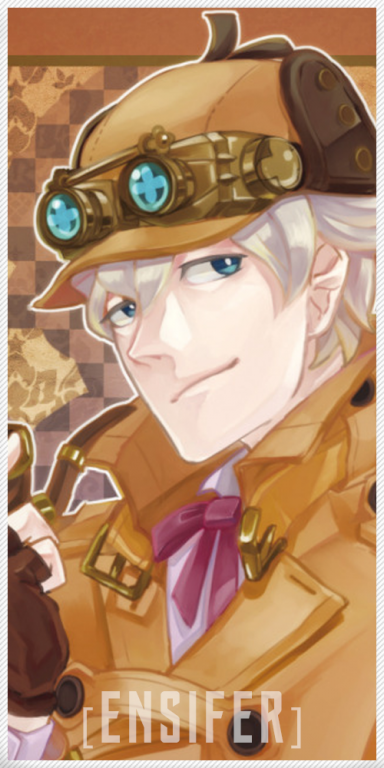
EXample:You must be registered for see images
To blank renders?
Something like thisI'm a tad bit confused, what exactly are you trying to do ?
So you want the first image in a black background ?

EXample:You must be registered for see images
To blank renders?
You must be registered for see images
Like this ? Or anything else ?
Just pain it black XD if it's render u can do whatever u want XD
Just pain it black XD if it's render u can do whatever u want XD
Easier said than done, tried to just paint it just to see how it would play out and it appears to have different shades of white so it's hard to do so. Right now trying to just filter it out manually to look cleaner.
so its harder to add the effects or....?
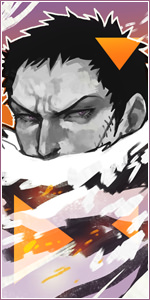
I'll add the effects, just give me about 5 minutes or so to clean out the image to do so and provide some results.
You must be registered for see images
Try now the pic u had wasn't a render...
You must be registered for see images
Firstly, that's not a render, so if you want to change the background it won't work. Also, you should get a better version of that image, which would beYou must be registered for see links.
Cut out the subject from the background, open photoshop (Or Gimp if it supports blend modes), put the background above the render and change the blend mode until you find one that looks how you want it to. The "Lighten" blend mode only shows the highlights and removes the blacks from an image, so that should be able to get rid of the black parts and leave only the bubbles visible over the render.
ok ill wait
Something like that but in front on the picture.
You must be registered for see images
All I can come up with, starting to run out of ideas.
i swear to you not you just confused me and how come its not a render?
Renders have transparent backgrounds, the image you posted has a white background. There are several ways you can use to tell, I can just click and drag it around with my mouse to see the white background, that's an easy way.