


4,675 posts
1,177 reactions
7


AnimeBase Profile Styling
A practical guide to CSS glows, color choices, and troubleshooting
A practical guide to CSS glows, color choices, and troubleshooting
A controlled glow can give profile panels definition without overwhelming the artwork or text. This tutorial explains how to add the effect, adjust its color and intensity, and resolve common styling problems.
Requirements
Access to Style settings → Profile style → CSS editor is required. Members in this thread have confirmed that profile CSS is a Premium feature; access depends on your account permissions. If the editor is unavailable, check your upgrade benefits.
Before editing: Back up your existing CSS and make one change at a time.
In this guide
- Find the profile CSS editor
- Apply a panel glow
- Understand the CSS values
- Choose a color and finish
- Add an optional hover effect
- Troubleshoot common issues
- Refine the finished design
- Further reading and support
1. Find the profile CSS editor
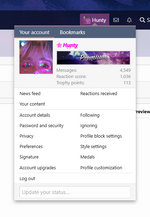
- Open your account menu and choose Style settings.
- Select the Profile style tab.
- Scroll down to the CSS editor.
- Copy your current CSS somewhere safe before changing it.
- Add the example below at the bottom, click Save, and open your profile to check the result.
This is the profile editor, not the post, postbit, or username style tab. Changes made in your browser's Inspect tools are temporary; use the account editor to save them.
Account menu → Style settings
Choose Profile style
Scroll to the CSS editor
You must be registered to see images
Choose Profile style
You must be registered to see images
Scroll to the CSS editor
You must be registered to see images
2. Apply a panel glow
Copy the CSS inside the code box into the profile CSS editor, below your existing theme. Do not copy the surrounding forum formatting.
CSS:
/* Profile panel glow */
body[data-template=member_view] .p-body-main .block-container {
  border-radius: 15px;
  border: 1px solid rgba(0, 173, 255, 0.5);
  box-shadow: 0 0 15px 3px rgba(0, 173, 255, 0.7);
}
.block-container is a class used by many XenForo panels. The part before it limits this example to the main content on member profile pages. It may not cover every module: headers, custom sections, and add-on panels can use different markup.The border gives the panel a defined edge, the shadow creates the halo, and the radius rounds the corners. This example leaves your background images and text colors alone. If your existing theme has carefully matched corners, omit
border-radius and keep its current rounding.
You must be registered to see images
3. Understand the CSS values
CSS:
box-shadow: 0 0 15px 3px rgba(0, 173, 255, 0.7);
/* Order: horizontal offset, vertical offset, blur, spread, color */| Value | Property | Effect |
|---|---|---|
0 (first) | Horizontal offset | Centers the glow from left to right. |
0 (second) | Vertical offset | Centers the glow from top to bottom. |
15px | Blur radius | Softens the shadow. Larger values create a wider, more diffuse halo. |
3px | Spread radius | Expands the shadow before blur is applied. Small values keep the effect contained. |
rgba(0, 173, 255, 0.7) | Color and opacity | The first three values set red, green, and blue (0–255). The final value sets opacity (0–1). |
For a subtle look, try
0 0 10px 1px with an opacity of 0.3. For a stronger halo, try 0 0 18px 2px with 0.6. More blur does not automatically mean a brighter glow; opacity and spread also affect its appearance.Change the RGB numbers in both the border and shadow to keep their colors coordinated. The opacity can differ: a crisp border often works well with a softer halo.
4. Choose a color and finish
Replace the border and shadow lines in the main example with one of these pairs. Keep the selector and braces around them.
Crimson · Dark and manga themes
CSS:
border: 1px solid rgba(210, 35, 65, 0.6);
box-shadow: 0 0 14px 2px rgba(210, 35, 65, 0.35);
Violet · A softer accent
CSS:
border: 1px solid rgba(165, 100, 255, 0.55);
box-shadow: 0 0 14px 2px rgba(165, 100, 255, 0.35);
White · Monochrome themes
CSS:
border: 1px solid rgba(255, 255, 255, 0.35);
box-shadow: 0 0 12px 1px rgba(255, 255, 255, 0.2);
Inner glow · A contained alternative
CSS:
border: 1px solid rgba(0, 173, 255, 0.5);
box-shadow: inset 0 0 14px rgba(0, 173, 255, 0.2);
An inner shadow stays inside the panel. It can be a better fit for tightly packed modules, although its visibility depends on their backgrounds.
Pick a color
Replace the color values
Save and check your profile
You must be registered to see images
Replace the color values
You must be registered to see images
Save and check your profile
You must be registered to see images
5. Add an optional hover effect
This adds a stronger blue halo when you hover over a panel with a mouse. Add it beneath the blue starter example. Match the RGB color if you chose another palette.
CSS:
@media (hover: hover) and (pointer: fine) {
  body[data-template=member_view] .p-body-main .block-container:hover {
    box-shadow: 0 0 18px 2px rgba(0, 173, 255, 0.6);
  }
}
The normal glow still works on touchscreens. This extra hover effect is limited to devices that support hover with a fine pointer, so it is not something mobile readers need to activate.
6. Troubleshoot common issues
Nothing changes
Check that you saved in Profile style, then refresh your actual profile. CSS belongs in the CSS editor without forum BBCode tags or Markdown backticks. Check for a missing closing brace or semicolon.
Only some boxes glow
On desktop, right-click the panel and choose Inspect. Check its outer container's classes. If it is not a
.block-container, this selector will not match it. Target that panel's actual class, while keeping the profile-page scope. Avoid generated IDs that may change later.Your theme already has a shadow
A new
box-shadow replaces the existing shadow on the same element; it does not automatically add to it. Multiple shadows can share one declaration, separated by commas. Review the old rule before replacing it.Another rule keeps winning
Look at the Styles panel in Inspect for crossed-out declarations. A more specific rule, a later rule of equal specificity, or an existing
!important declaration can take priority. Adjust the relevant selector first instead of adding !important to everything.The glow is cut off
A parent container may clip it with
overflow: hidden or overflow: clip. Reduce the blur/spread or try the inner-glow version. Do not remove overflow rules across the whole profile: they may keep images, tabs, and rounded corners contained.The boxes look crowded on mobile
Use less spread and a smaller blur. Shadows do not reserve extra layout space, so a large halo can paint into neighboring panels. Check the profile on a phone as well as desktop, including long posts, tabs, and the sidebar.
You want to undo it
Remove the glow block you added and save, or restore your backup. Removing it lets the rest of the theme take over again;
box-shadow: none would deliberately suppress other shadows too.7. Refine the finished design
- Keep the palette consistent. Repeat one main accent across panel borders, headings, and separators.
- Balance the intensity. Use a subtle glow as the baseline, with stronger accents only where they help establish hierarchy.
- Account for the background. Light halos stand out against dark panels; light panels often benefit more from a defined border.
- Protect readability. Keep body text clear and avoid heavy text glow across whole paragraphs.
- Check the complete profile. Review tabs, long posts, sidebar modules, and narrow screens before considering the theme finished.
8. Further reading and support
Box effects and text effects
box-shadow styles a box; text-shadow styles the letters. Treat them as separate effects. These references explain the syntax and include examples:-
You must be registered for see links
-
You must be registered for see links
-
You must be registered for see links
The screenshots above are from the original tutorial, so the menu and theme may look a little different on your account. The updated snippets are starting points; custom themes can need different selectors.
Need help with a specific panel?
Reply with a screenshot, the relevant CSS, and a brief description of the expected result. Include whether the issue appears on desktop, mobile, or both.
Attachments
Last edited: