It's not that hard.

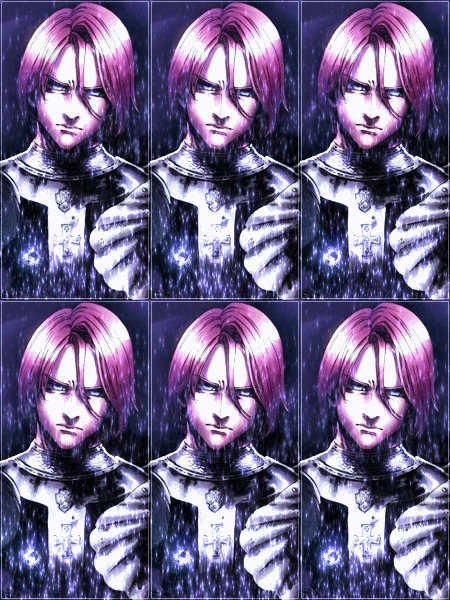
Download dotted/dashed patterns using google search. Place the downloaded files in your photoshop folder in Photoshop>App>Photoshop CS6>Presets and place the downloaded files there. Open up an image in Photoshop. Press Ctrl+Shift+N to create a new layer. There will be two things named, "layer 0" and "background" on the layer tab. Click on the layer 0 one and select the whole image using Rectangular Marquee Tool( Shortcut M). Then after selecting, right click on it and select Edit>Stroke>2 px>White color and select ok. Then click on anything outside the image. Next, right click on the layer 0 part, and select Blending Options. There, click on Pattern Overlay, so as it's tickmarked. Click on it and then on the right side go to Pattern and multiple patterns will appear. Click on the small settings icon the right side and select Load Patterns. There, load your downloaded patterns and then select one of them, which will be a dotted border. Then select Color Overlay, and select Blend Mode as Screen. On the right side of it is a color picker. Click on it and select whatever color you want and select ok.
Voila, you're done!